Better screenshots.
Clearer instructions.
Capture the right detail, explain it clearly, and make it ready to share. Practical Mac screenshot guides and tool comparisons, from the team behind Snipip.
More screenshot guides
7 articles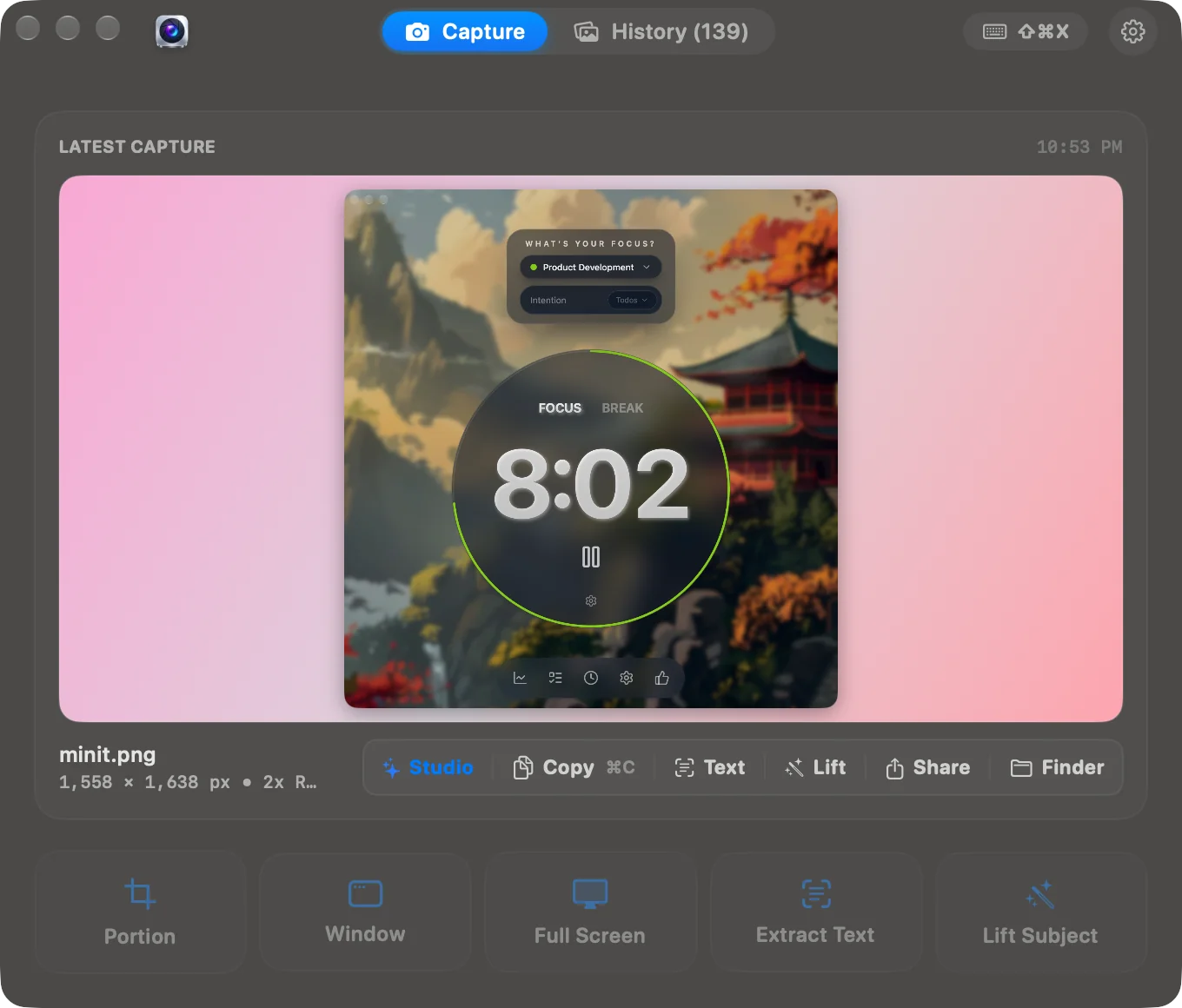
Best Screenshot Tools for Mac: Choose by the Work You Do
Compare the built-in Mac screenshot tool, CleanShot X, Shottr, Xnapper, and Snipip for capture, annotation, scrolling pages, and polished visuals.
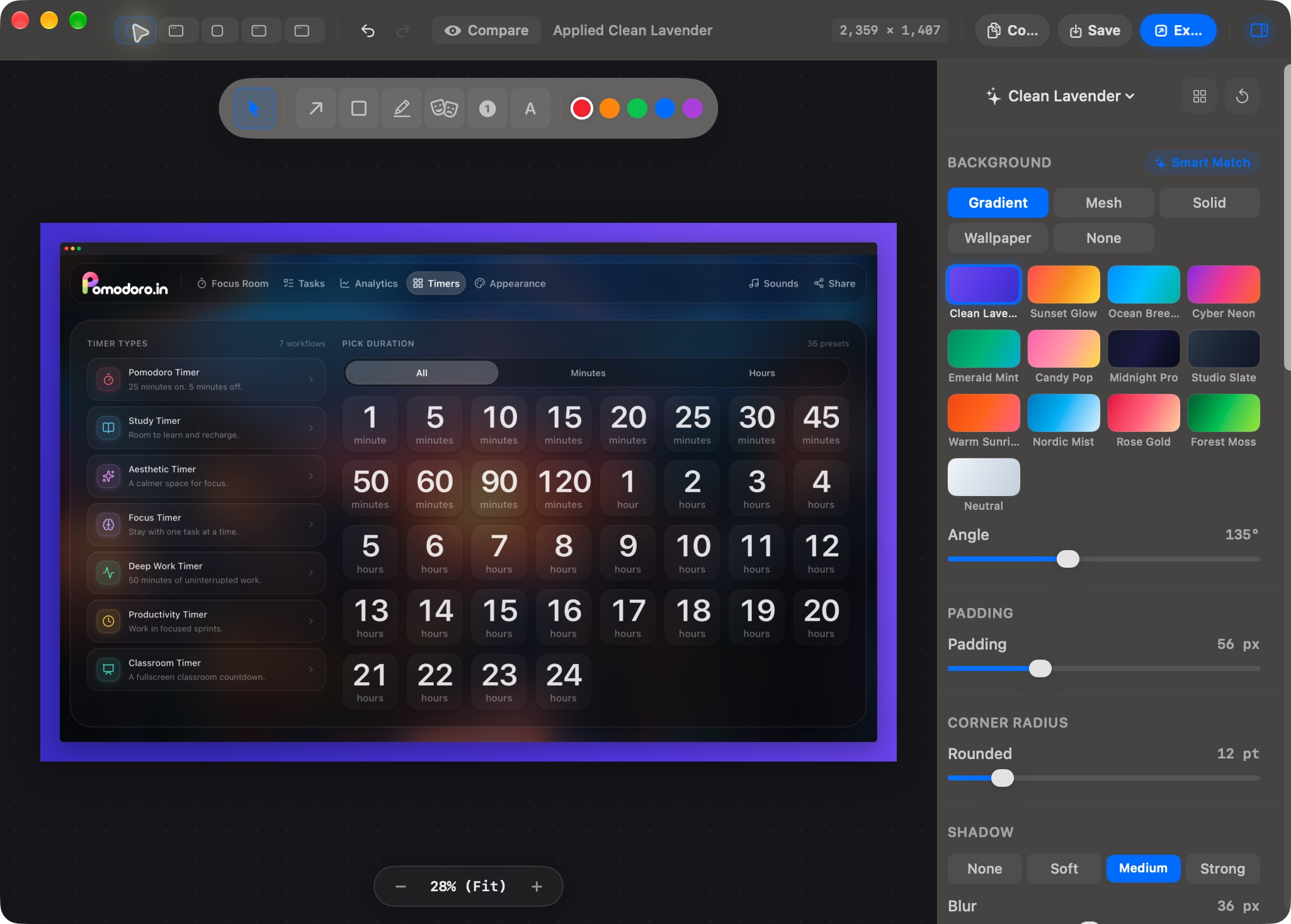
How to Annotate Screenshots on Mac: Arrows, Text, and Clear Steps
Use Preview to crop screenshots and add arrows, labels, and shapes. Learn a clear bug-report workflow and check edited images before sharing.
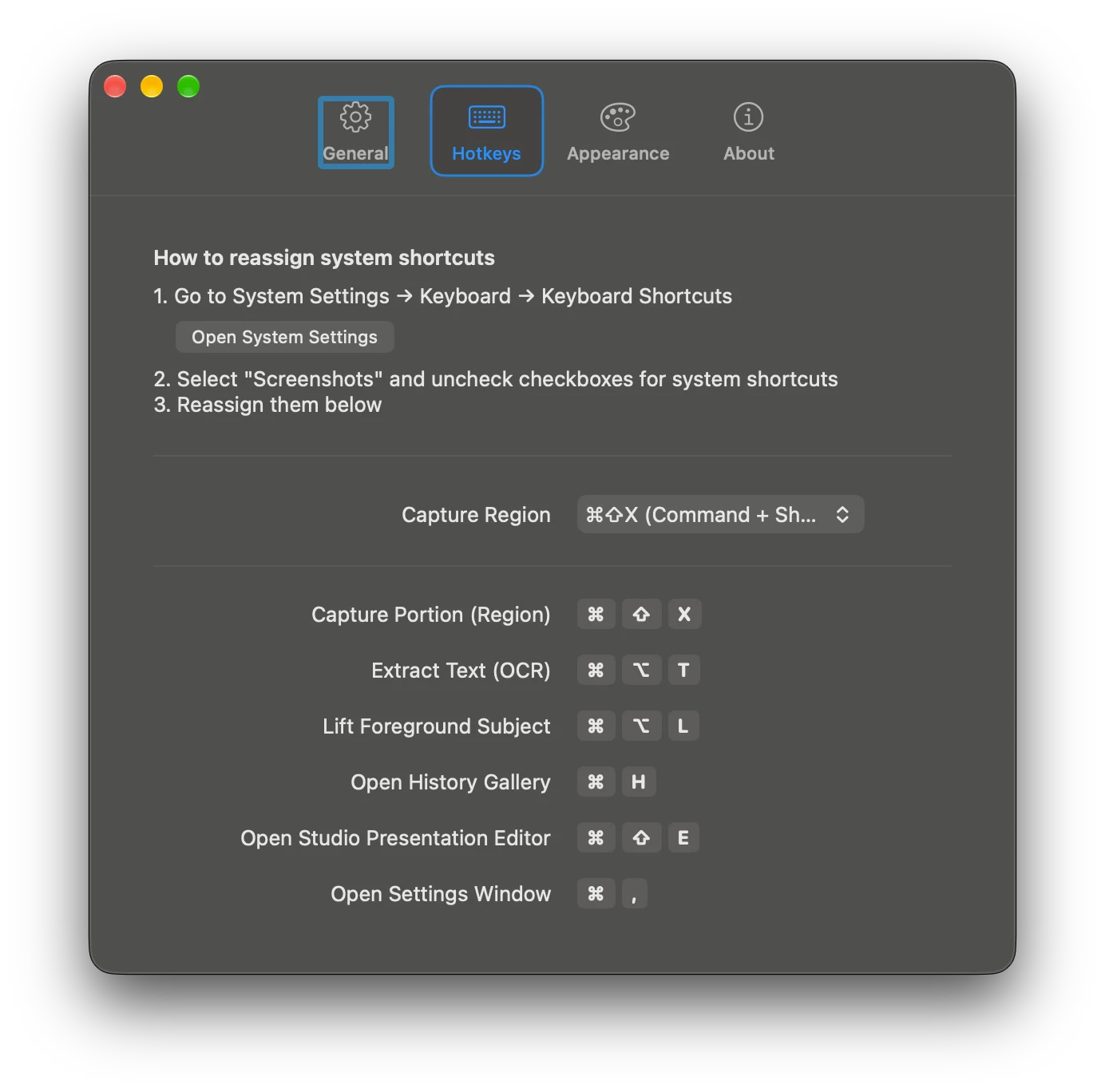
How to Copy Text from a Screenshot on Mac
Extract text from a Mac screenshot with Live Text in Preview or Snipip OCR, then fix recognition errors in code, tables, and error messages.
How to Make Beautiful Screenshots for Docs, Slides, and Launches
Turn a raw screenshot into a clear, polished visual with better cropping, backgrounds, padding, frames, and export sizing in Snipip Studio.
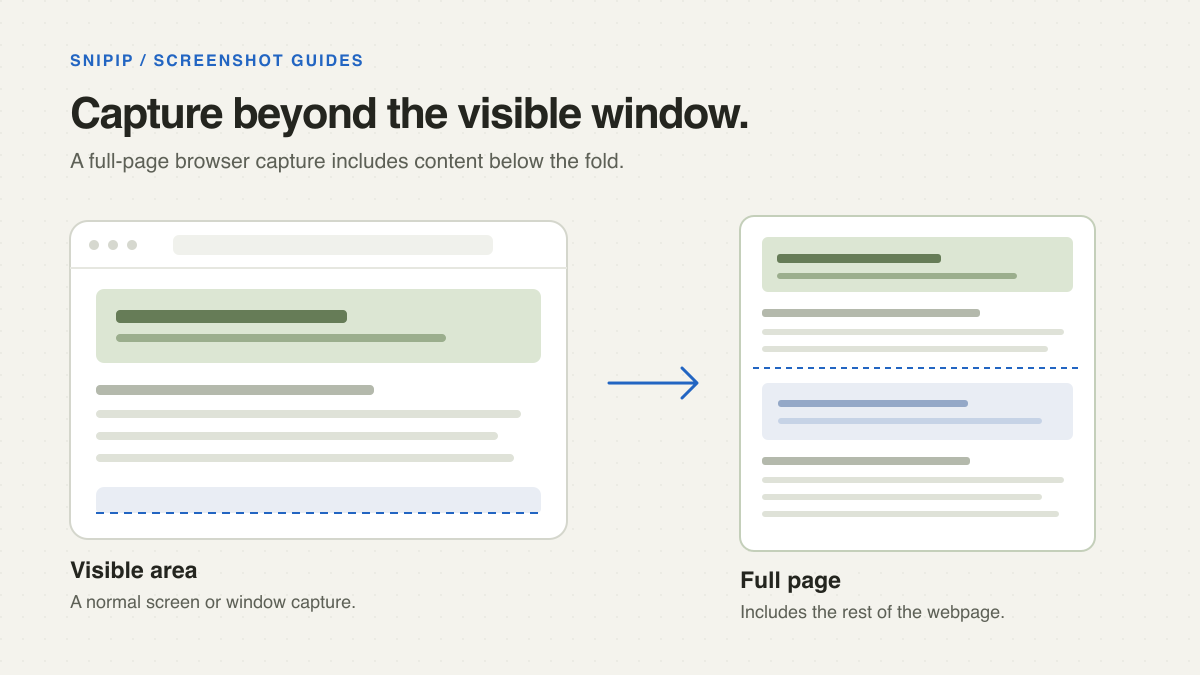
How to Take a Scrolling Screenshot on Mac: Webpages and App Windows
Capture a full webpage with Chrome or Firefox, or use a scrolling capture app for long windows. Fix missing content and choose a readable output.
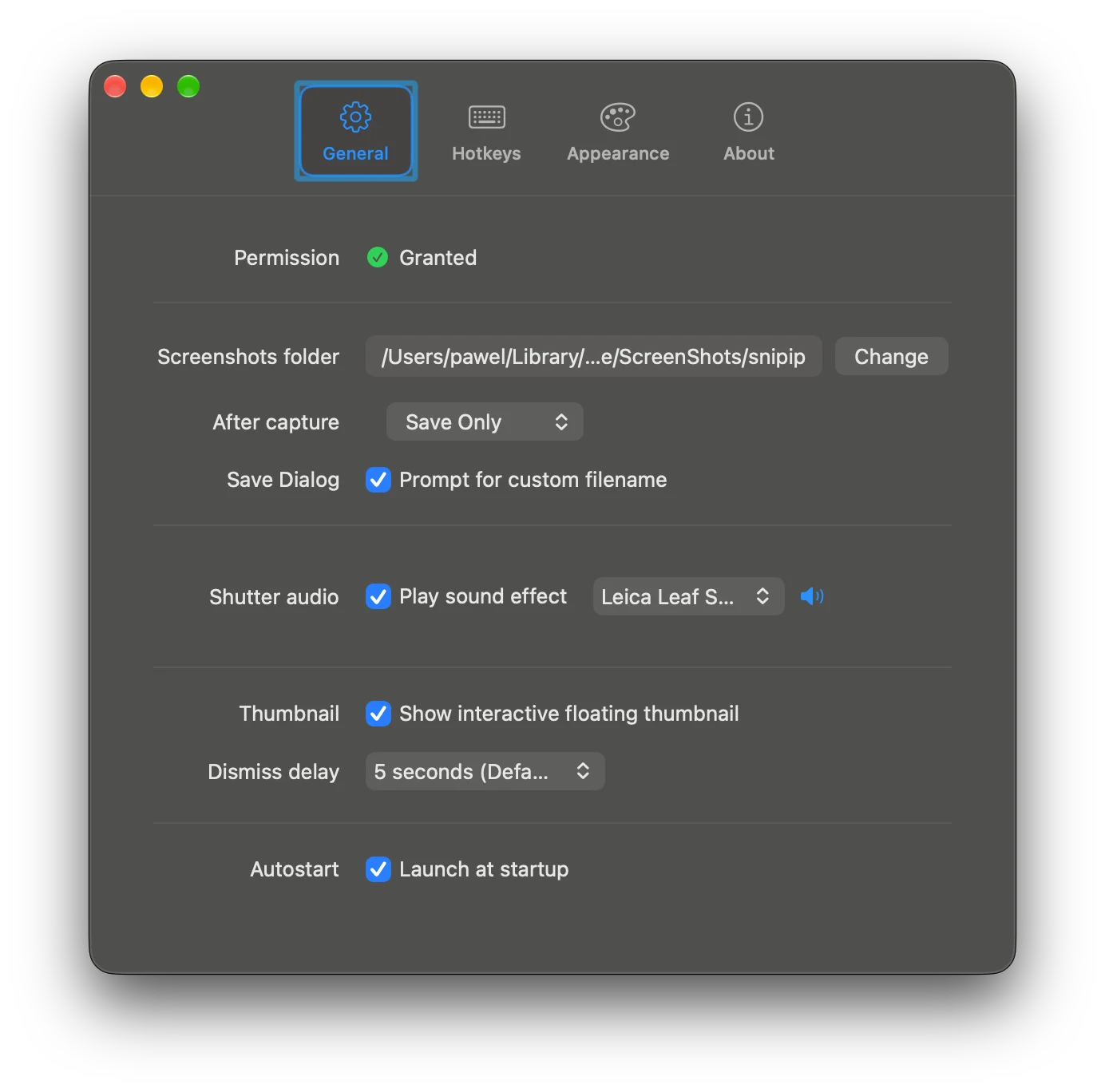
Mac Screenshot Not Working? Fix Shortcuts, Missing Files, and Blank Captures
Troubleshoot Mac screenshots by symptom: shortcuts that do nothing, captures that do not save, third-party permissions, and blank app windows.