How to Make Beautiful Screenshots for Docs, Slides, and Launches
Turn a raw screenshot into a clear, polished visual with better cropping, backgrounds, padding, frames, and export sizing in Snipip Studio.
Snipip Team
Screenshot tools & workflows
Table of Contents (7 sections)
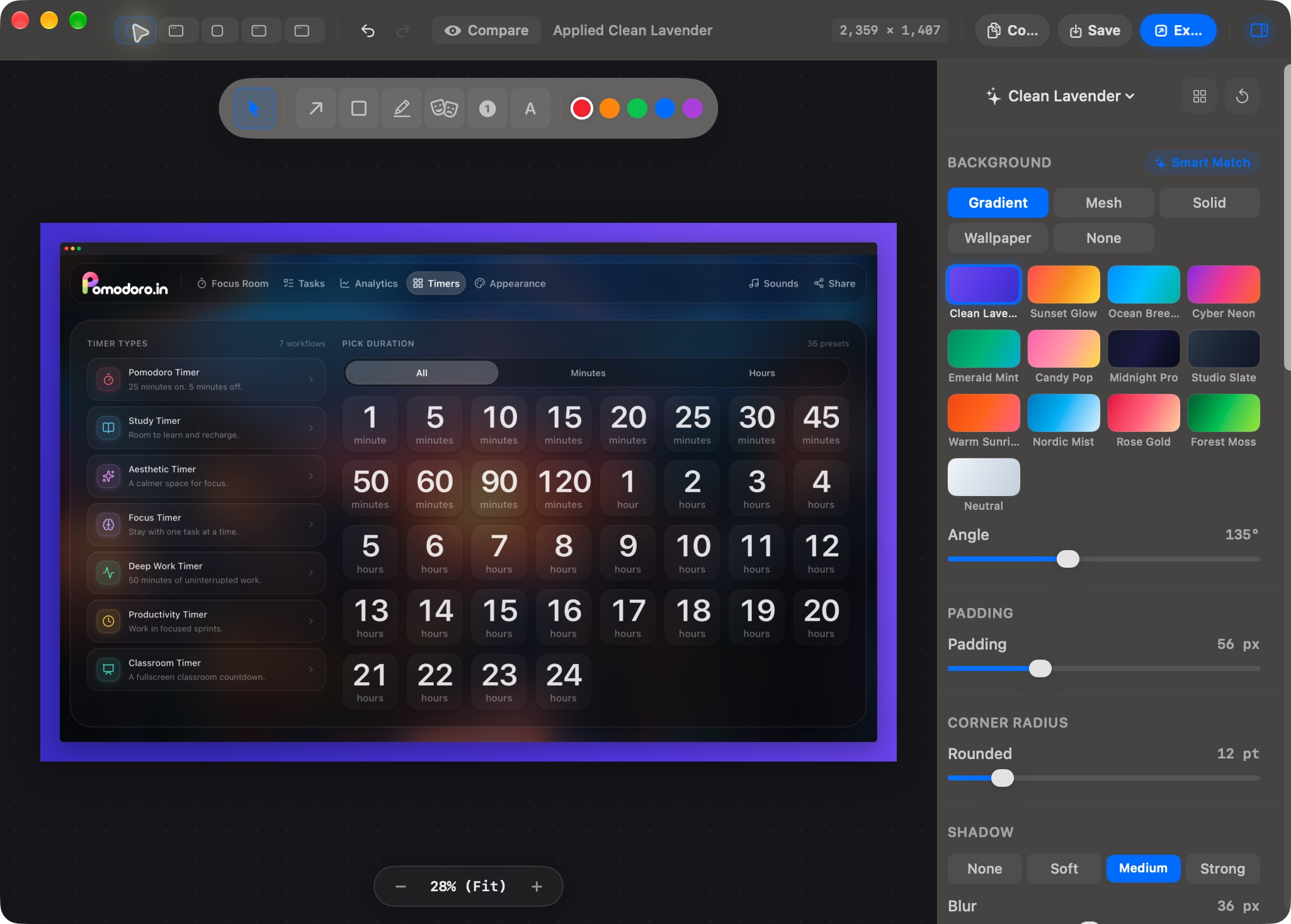
A polished screenshot starts with a readable subject, a tight crop, and enough space around it. Add a background and a restrained frame after those are right. Decoration cannot fix text that is too small to read.
This guide uses Snipip Studio to explain the workflow. The composition choices also apply in another screenshot editor: decide what the image needs to communicate, make that content easy to see, then style it for the destination.
Decide where the image will appear
An image in a help article serves a different purpose from a launch graphic. Choose the destination before adding a frame.
| Destination | Prioritize | A useful starting point |
|---|---|---|
| Help documentation | Readable controls and familiar context | Tight crop, plain background, minimal framing |
| Presentation slide | One feature visible from a distance | One focused window with generous separation from surrounding slide content |
| Product announcement | A clear focal point and consistent style | Simple backdrop, one frame, short supporting caption |
| Bug report | Accurate evidence | Original capture or minimal markup; keep the relevant state visible |
For a bug report, presentation effects may add no value. For a launch graphic, a consistent backdrop can help a series of images feel related.
Step 1: prepare and capture the subject
Use sample data where possible. Close unrelated tabs, remove distracting panels, and arrange the source window so the important control is comfortably readable.
Capture a region for a single feature or a whole window when the navigation explains where to find it. Our Mac capture guide covers both. Keep the original file so you can make a different crop later.
Before opening an editor, write the sentence the image should support. For example: “Choose a destination folder before starting a batch of captures.” If half the screenshot does not help explain that sentence, consider leaving it out.
Step 2: open the capture in Snipip Studio
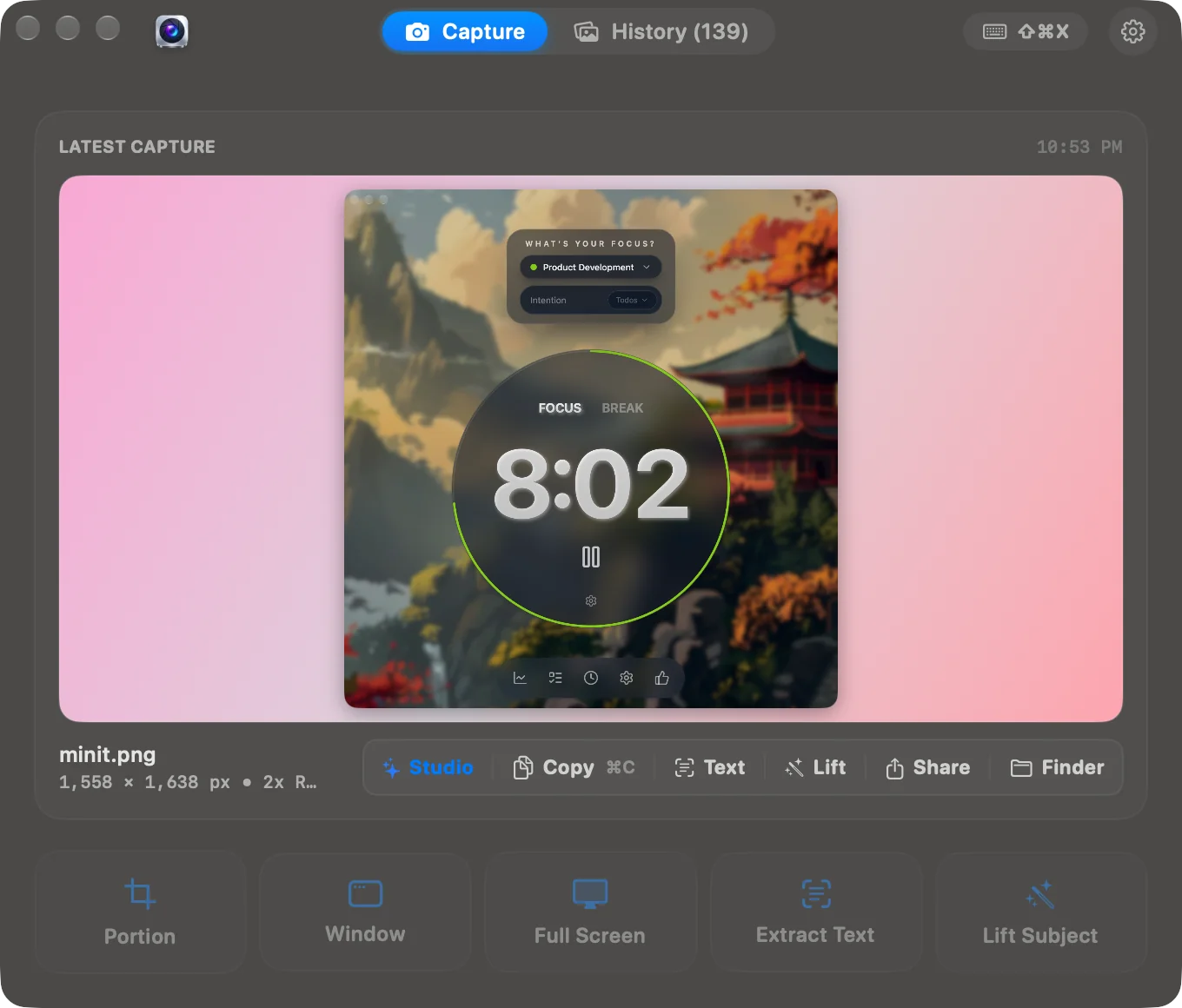
From the latest capture, choose Studio. You can also check Settings → Hotkeys for the Studio shortcut assigned on your Mac; the product screenshot shows Command + Shift + E.
Start with the captured content and adjust one visual property at a time. Changing the background, frame, padding, corners, and shadow together makes it harder to see which change improved the result.
Step 3: choose a background that supports the content
A solid color is a good baseline. If the image feels flat, try a subtle gradient whose light and dark areas still separate clearly from the screenshot’s edges.
For a light interface, a slightly darker or tinted backdrop can define the boundary. For a dark interface, check that the outside of the window does not disappear into the background. Avoid a busy wallpaper behind a dense settings panel.
The Studio screenshot above shows gradient choices and an angle control. Treat presets as a starting point, then evaluate the actual image. A color that works for one capture may compete with another capture’s charts or warning banners.
Step 4: add padding without making the screenshot tiny
For a 1,600-pixel-wide output, try about 80 pixels of space on each side as a first draft. That leaves roughly 1,440 pixels for the content before a frame. These are suggested design values, not required export settings.
If that output appears 800 pixels wide in an article, every element is displayed at half its exported size. A label that looked comfortable in the editor may become difficult to read.
Reduce the padding or crop more tightly before increasing the overall output size. More exported pixels cannot compensate for fitting too much interface into a small display area.
Step 5: choose one frame and a restrained shadow
Snipip offers frames such as Browser, Mac Window, MacBook, iPhone, and Floating Card. Choose one that fits the content. Use a browser frame for a webpage or a neutral card when the original application’s identity is irrelevant.
A device frame suggests a device context; it does not demonstrate that a website works on that device. Use a real capture at the intended viewport when showing responsive behavior.
If the source window already includes a shadow, avoid stacking another heavy shadow around it. Softer edges usually leave more attention for the content. Match corner treatment and shadow strength across a related set of images.
Step 6: inspect the exported image in its destination
Export or copy the finished composition, place it in the actual slide or document, and check:
- The main label is readable without opening a larger version.
- The crop includes the context needed to understand the action.
- No account details, messages, or internal addresses have slipped in.
- The frame and background support the screenshot rather than dominating it.
- The caption explains what the reader should notice.
For a sequence, record your background, padding, frame, corner, and shadow choices so the next image matches. Add arrows or step numbers only when they explain an action; follow the annotation guide for a practical example.
From the team behind Snipip
We build a Mac screenshot capture and presentation app. These guides cover practical workflows with Snipip, built-in macOS tools, and other screenshot apps. For a correction or a question about this guide, contact support@snipip.com.
Keep learning
View all →How to Annotate Screenshots on Mac: Arrows, Text, and Clear Steps
Use Preview to crop screenshots and add arrows, labels, and shapes. Learn a clear bug-report workflow and check edited images before sharing.
Best Screenshot Tools for Mac: Choose by the Work You Do
Compare the built-in Mac screenshot tool, CleanShot X, Shottr, Xnapper, and Snipip for capture, annotation, scrolling pages, and polished visuals.