How to Copy Text from a Screenshot on Mac
Extract text from a Mac screenshot with Live Text in Preview or Snipip OCR, then fix recognition errors in code, tables, and error messages.
Snipip Team
Screenshot tools & workflows
Table of Contents (6 sections)
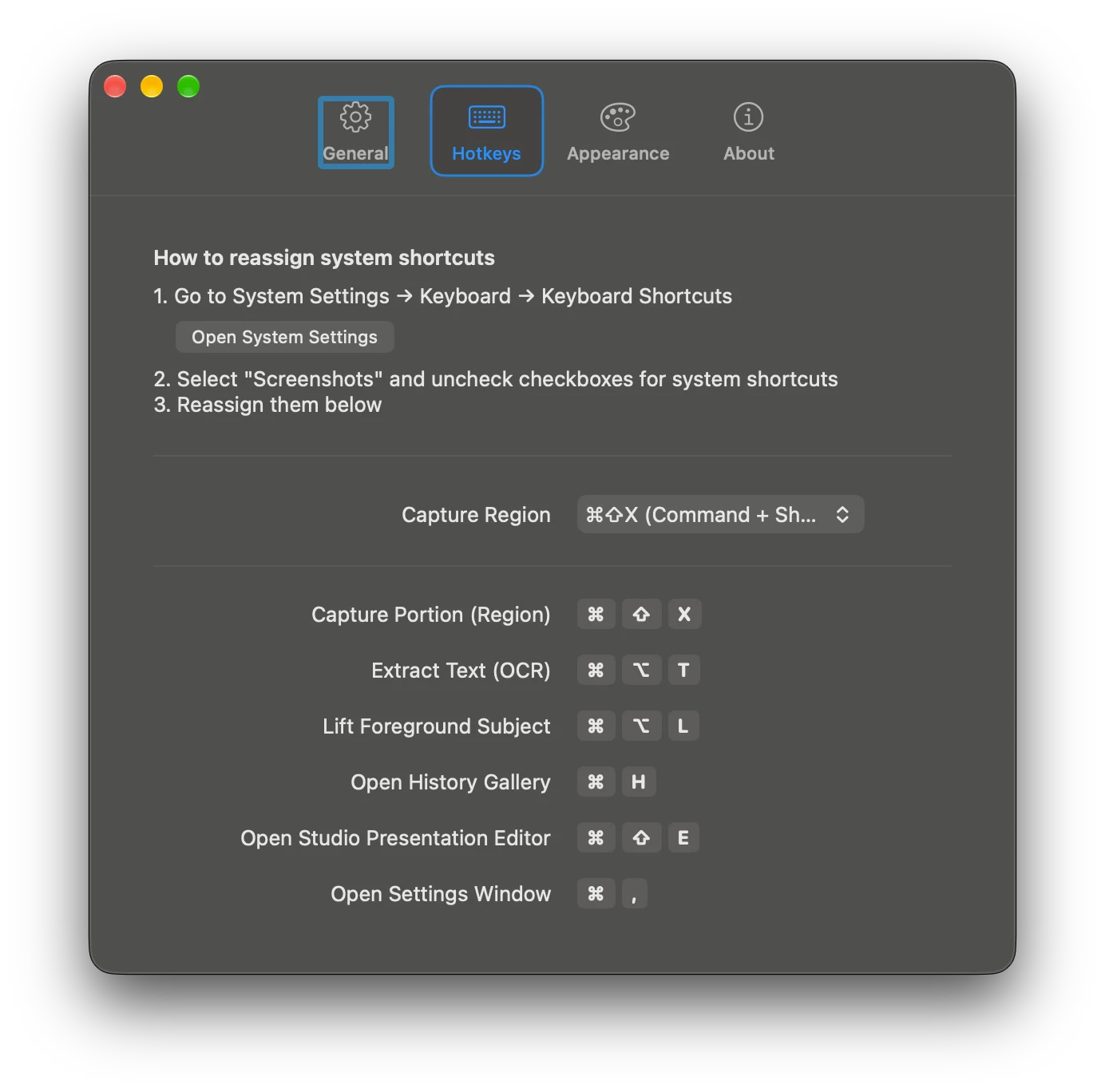
Open the screenshot in Preview, select the text with Live Text, and copy it. If you are extracting directly from the screen, Snipip also exposes an Extract Text (OCR) action and configurable hotkey.
OCR means optical character recognition: software infers letters and numbers from pixels. It is useful for an error message in a screenshot, a code sample in a slide, or a label in a remote session. The result still needs checking against the original.
Method 1: use Live Text in Preview
- Open the original screenshot in Preview.
- Move the pointer over the words. When Live Text recognizes them, select the text you need.
- Copy the selection and paste it into your document or a plain-text editor.
This depends on your macOS version, supported language, and whether the image contains recognizable text. Apple explains supported interaction in Live Text in Preview.
If selection does not work, try a tighter source capture with larger, sharper text. Repeatedly enlarging a compressed copy will not recreate the letter shapes that were lost.
Method 2: extract directly with Snipip
Open Snipip’s capture interface and choose Extract Text. You can also open Settings → Hotkeys and check the assigned Extract Text (OCR) shortcut; the product screenshot shows Command + Option + T.
Select the text area you want to recognize and review the extracted result before using it. Prefer one message, paragraph, or column at a time. A smaller, deliberate selection is easier to compare with the source and less likely to mix in nearby labels.
The shortcut in your installation may differ. Use the settings screen as the reference, especially if another app already uses that key combination.
Improve the source before trying OCR again
Try these changes in order:
- Use the original image. Avoid a screenshot of a screenshot inside a chat preview.
- Enlarge text in the source app. Capture again after increasing the source text size, rather than scaling up the saved pixels.
- Select less content. Extract one column or error block instead of an entire dashboard.
- Remove interference. Wait for a tooltip to disappear and move the pointer away from the text.
- Use direct copy when available. A log file, accessible webpage, or exported table preserves the text more faithfully than recognition.
Keep the screenshot until you have checked the extracted text. Without the source, it is harder to spot a plausible-looking wrong character.
Check the characters that change meaning
| Source content | Common thing to inspect | Why it matters |
|---|---|---|
| Error identifiers | 0 versus O, 1 versus l |
A search may return the wrong error |
| Code | Quotes, backticks, braces, and indentation | A small substitution can change syntax |
| File paths | Spaces, slashes, and punctuation | A path may point somewhere else or fail |
| Tables | Column order and line breaks | Values can end up under the wrong headings |
| Dates and amounts | Decimal marks, separators, and signs | A readable result may still contain a wrong value |
For example, compare --output with —output. A long dash looks similar but is not two command-line hyphens. Review copied commands as text before running them.
Copy an error message into a useful support request
Extract the short error block, paste it as text, and add what you were doing when it appeared. Include the original screenshot when its context matters.
Action: Exporting a PNG to the project folder.
Error: [paste the checked error text here]
Result: No output file was created.
Context: App version, macOS version, and selected destination.
Text makes an error searchable and easy to quote. The screenshot can show a selected option or disabled control that the extracted message leaves out. See how to annotate a useful bug screenshot for that second part.
Know when OCR is the wrong extraction method
For code, request the source snippet when possible. For a table, prefer CSV or another structured export. For a multipage document, use a document workflow rather than copying screenshots paragraph by paragraph.
OCR is a practical fallback when pixels are all you have. Treat it as a draft of the text, and check the characters that matter before relying on it.
From the team behind Snipip
We build a Mac screenshot capture and presentation app. These guides cover practical workflows with Snipip, built-in macOS tools, and other screenshot apps. For a correction or a question about this guide, contact support@snipip.com.
Keep learning
View all →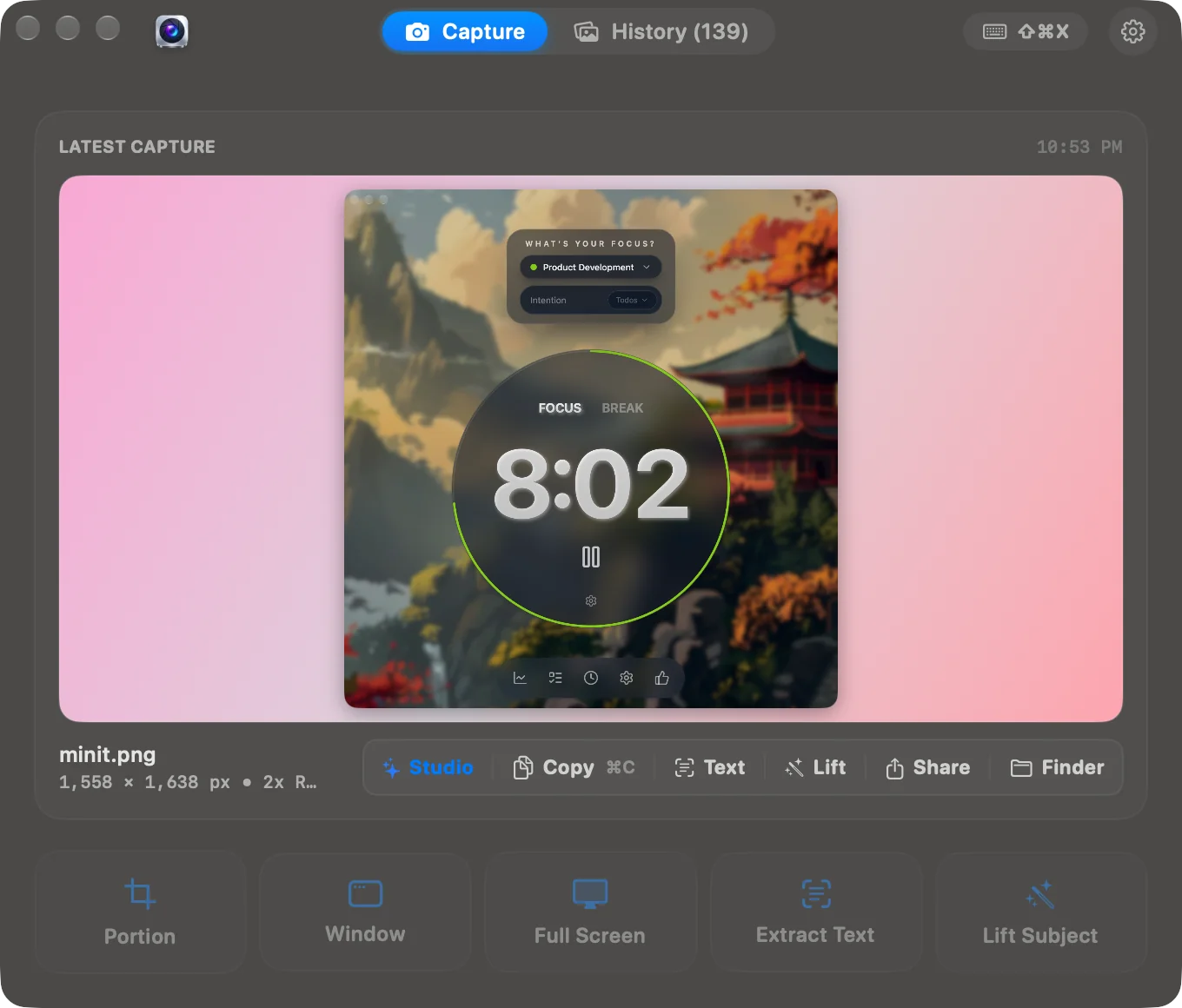
How to Take a Screenshot on Mac: Shortcuts, Windows, and Saving
Capture a region, window, or full screen on Mac. Learn the shortcuts, copy without saving, set a timer, and choose where screenshots go.
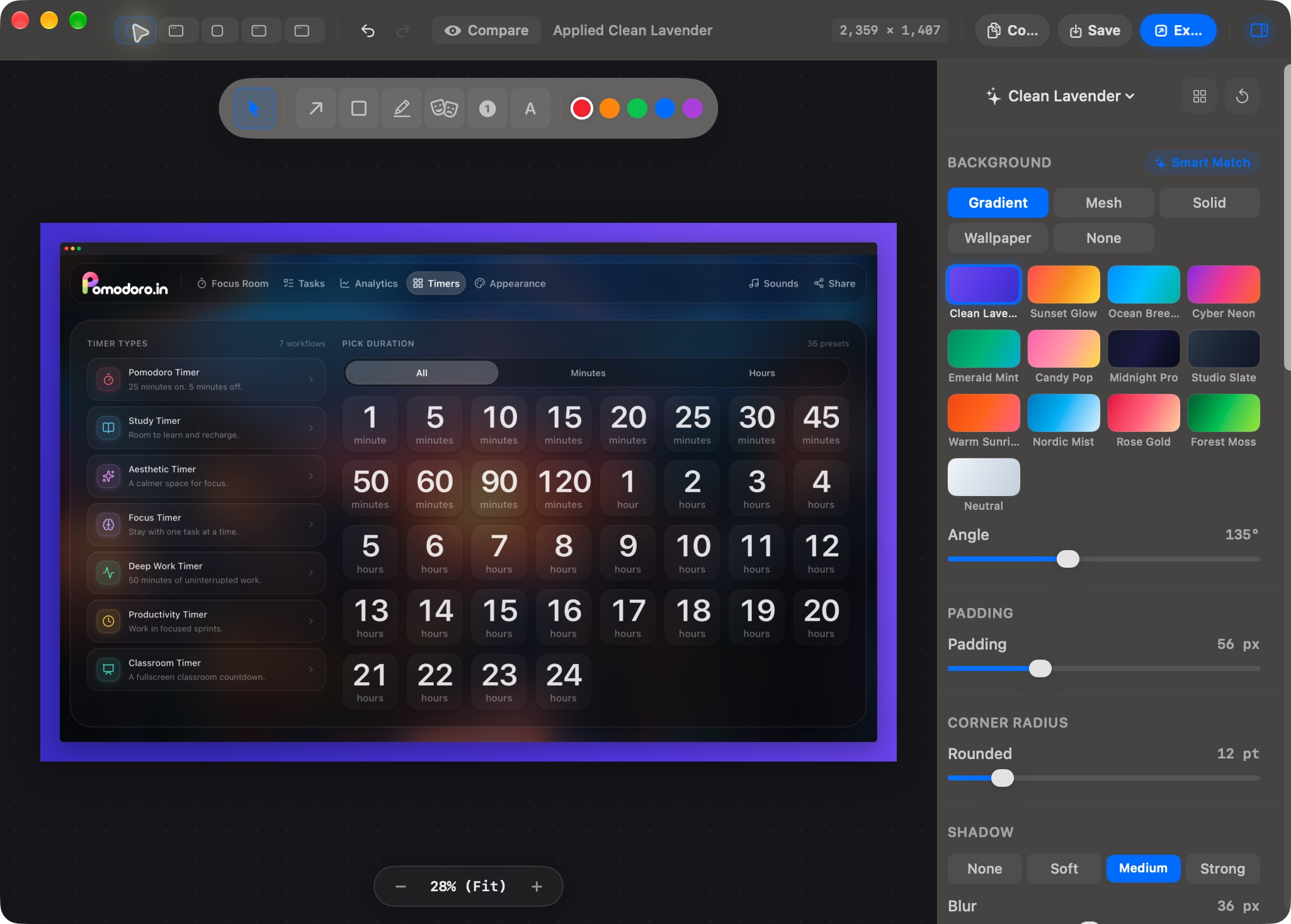
How to Annotate Screenshots on Mac: Arrows, Text, and Clear Steps
Use Preview to crop screenshots and add arrows, labels, and shapes. Learn a clear bug-report workflow and check edited images before sharing.