How to Take a Scrolling Screenshot on Mac: Webpages and App Windows
Capture a full webpage with Chrome or Firefox, or use a scrolling capture app for long windows. Fix missing content and choose a readable output.
Snipip Team
Screenshot tools & workflows
Table of Contents (6 sections)
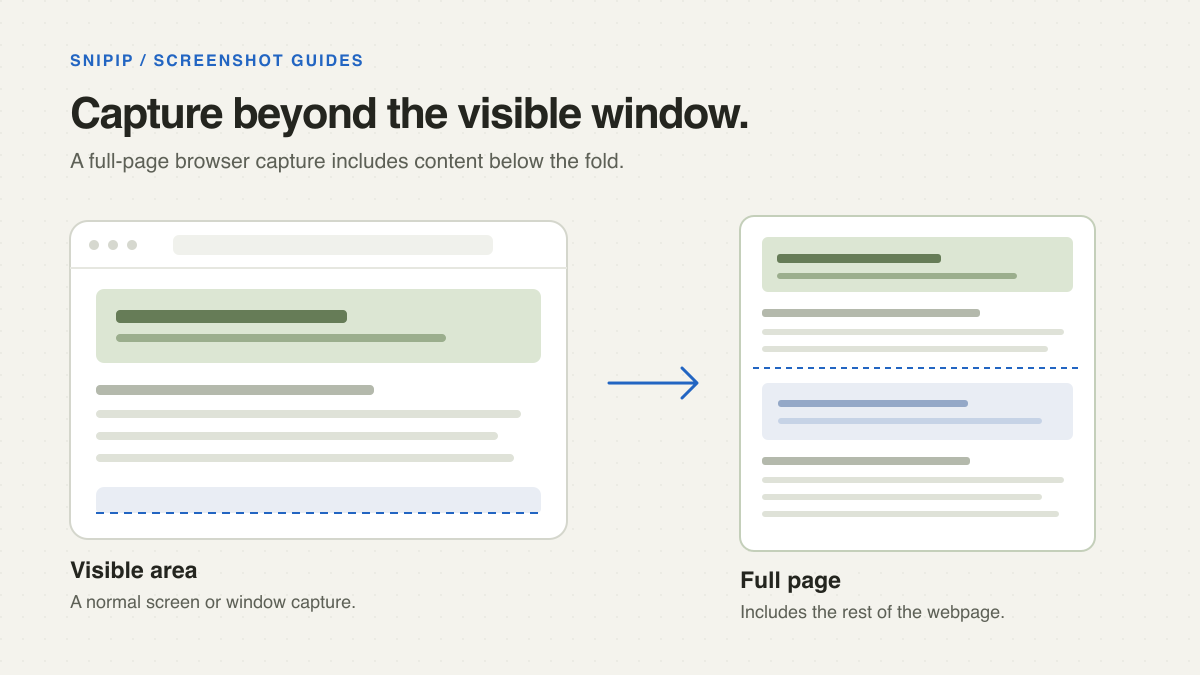
For a whole webpage, use your browser’s full-page capture. For a long app window, use a tool that explicitly supports scrolling capture. A normal screen capture records the visible area; it does not collect content below the window automatically.
There are two different jobs here. A browser can render an entire webpage to an image. A desktop scrolling tool moves through visible content and combines captures. Choose the method based on where your content lives.
Choose a method before you begin
| Content | Start with | Check afterward |
|---|---|---|
| A regular webpage in Chrome | DevTools full-size screenshot | Responsive layout and lazy-loaded content |
| A regular webpage in Firefox | Built-in Save full page | The whole page loaded before capture |
| A conversation or desktop app window | A documented scrolling tool such as Shottr or CleanShot X | Missing sections, repeated rows, and capture limits |
| A long document you need to search or print | The source app’s export or PDF option | Whether the export preserves the layout you need |
Capture a full webpage in Chrome
- Open the page and wait for its content to load.
- Open DevTools with Command + Option + I.
- With DevTools focused, press Command + Shift + P to open its Command Menu.
- Search for Capture full size screenshot and run that command.
- Open the saved image and check its top, middle, and bottom.
Google documents the DevTools Command Menu and full-page screenshot controls in Device Mode.
Opening docked DevTools can narrow the page and change its layout. If width matters, undock DevTools before capturing or use Device Mode with an intentional viewport width. A desktop webpage squeezed into a narrow column may no longer show the state you wanted to document.
This captures webpage content, not the browser’s address bar or your entire Mac desktop. Use a normal window capture when browser controls are part of the explanation.
Capture a full webpage in Firefox
- Open the page and scroll through it once if images load as you move.
- Right-click an empty part of the page and choose Take Screenshot.
- Choose Save full page.
- Download the image or copy it, then inspect the result.
These controls are documented in Mozilla’s Firefox Screenshots guide. A webpage’s own right-click menu may interfere, so choose an empty area outside an interactive widget.
Capture a long desktop window
Shottr’s scrolling capture guide describes an automatic capture workflow: choose Scrolling Capture from its menu bar menu, select the window, and allow it to scroll without other input. Review and crop the result when its editor opens. Its documented setup includes Screen Recording and Accessibility permissions.
CleanShot X also documents scrolling capture. Evaluate either with the actual window you need; custom interfaces and dynamically loaded content can require a different approach.
Snipip’s documented capture workflow on this site covers regions, windows, and full screens. This guide does not present those modes as scrolling capture. You can use a separate scrolling tool when that is the task you need to solve.
Fix incomplete or repeated content
Images are missing: scroll through the page slowly before capture so deferred images have an opportunity to load. Wait for loading indicators to finish, return to the start, and capture again.
Only one panel is captured: check whether you are scrolling the page or a smaller container inside it. A full-page browser image may include only the visible state of a separately scrolling table or message panel. Use a tool suited to that panel or the application’s export feature.
The capture never ends: infinite-scroll feeds have no fixed bottom. Choose a bounded range, use an export, or take several named sections rather than trying to preserve an unlimited feed.
Headers repeat or rows are cut off: compare the output against the source at section boundaries. Try a browser-native method for a webpage or a smaller capture range for a desktop window. Do not use an uninspected image as a record of every row.
Make the long image useful to its reader
A very tall screenshot is an archive, but it is often a poor explanation at normal viewing size. For a support ticket, include the full capture as an attachment and add a focused crop around the problem. For a how-to guide, split the workflow into separate steps with readable images.
Keep the original long image, give each crop a descriptive name, and add captions that explain the relevant section. Use the annotation guide when a specific detail needs a callout, or the presentation guide for a focused visual intended for a slide or announcement.
From the team behind Snipip
We build a Mac screenshot capture and presentation app. These guides cover practical workflows with Snipip, built-in macOS tools, and other screenshot apps. For a correction or a question about this guide, contact support@snipip.com.
Keep learning
View all →
Best Screenshot Tools for Mac: Choose by the Work You Do
Compare the built-in Mac screenshot tool, CleanShot X, Shottr, Xnapper, and Snipip for capture, annotation, scrolling pages, and polished visuals.
Mac Screenshot Not Working? Fix Shortcuts, Missing Files, and Blank Captures
Troubleshoot Mac screenshots by symptom: shortcuts that do nothing, captures that do not save, third-party permissions, and blank app windows.