How to Annotate Screenshots on Mac: Arrows, Text, and Clear Steps
Use Preview to crop screenshots and add arrows, labels, and shapes. Learn a clear bug-report workflow and check edited images before sharing.
Snipip Team
Screenshot tools & workflows
Table of Contents (6 sections)
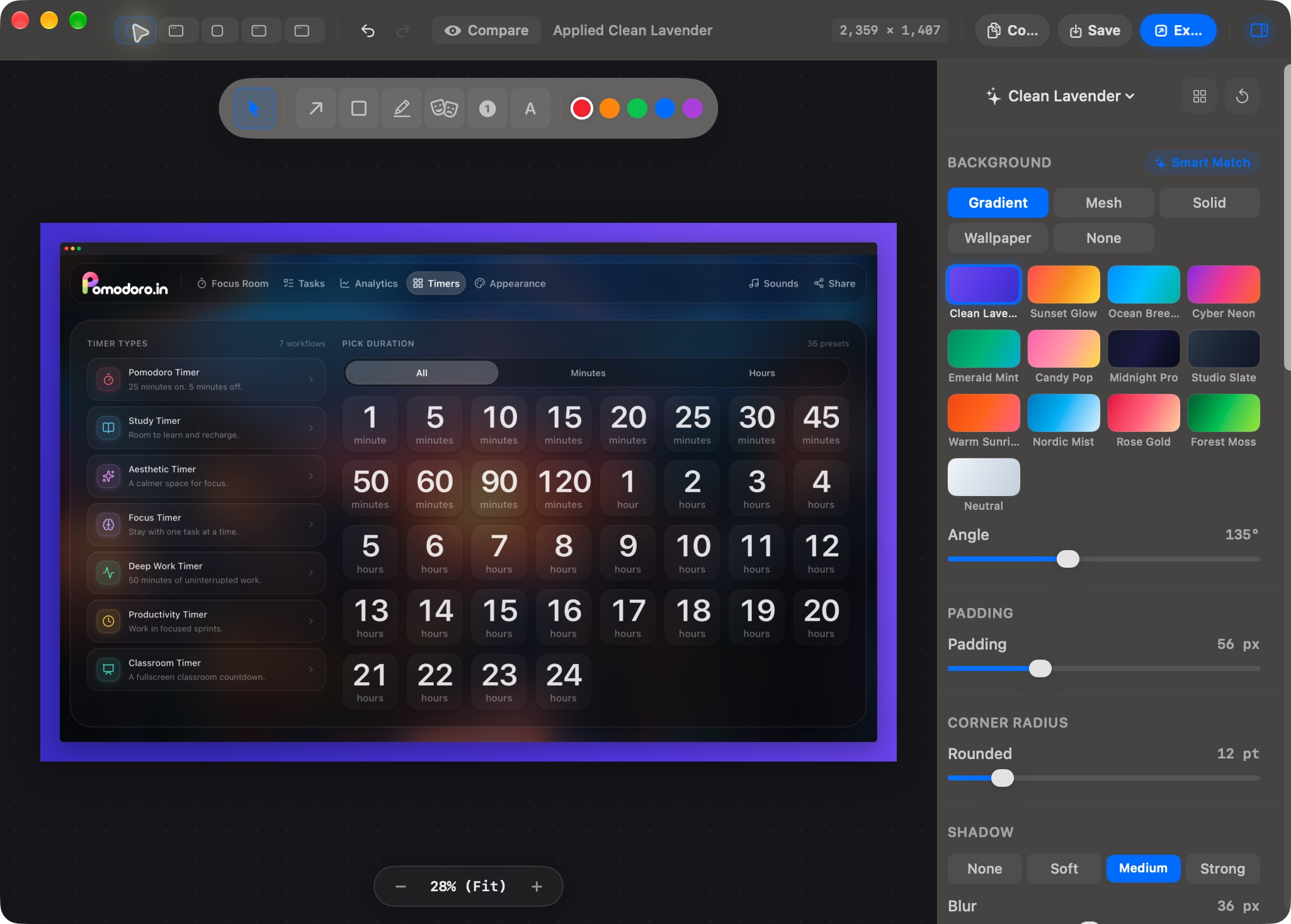
Open the screenshot in Preview, show the Markup toolbar, then use Shapes or Text to add a callout. A useful annotation tells the reader where to look and why it matters. It should not require them to decode a page of arrows.
For most instructions, one crop, one callout, and one sentence are enough. Keep the original capture so you can revise the image without rebuilding it from an edited copy.
Add arrows and text with Preview
- Open a copy of your screenshot in Preview.
- Choose View → Show Markup Toolbar if the editing tools are hidden.
- Use Shapes to insert an arrow or rectangle and drag it into position.
- Adjust its color and line weight so it stands out against the interface.
- Use Text for a short label. Place it in nearby empty space without covering the control.
- Save the edited copy and reopen it to check the result.
Apple documents these tools in Annotate an image in Preview. Saved image annotations become part of the image, so keep an untouched original if you may need changes.
Crop before adding callouts
Remove unrelated content first. In Preview, make a rectangular selection around the area you need and choose Tools → Crop. You can also adjust image dimensions through Tools → Adjust Size; see Apple’s crop and resize instructions.
A crop should preserve enough context to answer “Where am I?” Keep a nearby panel title or navigation item if it helps someone locate the same setting. Avoid cropping so tightly that a button floats in an unrecognizable fragment of interface.
Choose the annotation that answers the question
| Reader’s question | Useful annotation | Example label |
|---|---|---|
| Where should I click? | One arrow ending near the control | “Open export settings” |
| Which field matters? | A rectangle around the field | “Use the project folder” |
| In what order? | A few numbered labels | “1. Choose a format” |
| What went wrong? | A callout beside the actual error | “The file saves with no extension” |
Use labels that describe an action or observation. “Click here” is less useful than “Choose PNG” once the image is separated from its surrounding paragraph.
Do not rely on color alone. Combine a colored outline with text or a step number so the meaning survives a grayscale printout or a reader’s different color perception.
Example: make a bug screenshot actionable
Suppose a Save button stays disabled after a required field is filled in.
Capture the form with the filled field and disabled button both visible. Draw a rectangle around the button and label it “Save remains disabled.” Keep the entered sample value readable. Put reproduction details in the ticket rather than squeezing them into the image:
Steps: Open Profile → enter a display name → select Save.
Expected: Save becomes available after a valid name is entered.
Actual: Save remains disabled.
Context: App version, macOS version, and whether it repeats.
The screenshot provides visual evidence; the text provides the steps someone can repeat. Avoid adding a decorative device frame if it reduces the space available for that evidence.
Handle sensitive details before sharing
The cleanest option is to capture sample data or crop private information out. If you need to cover a detail, use a fully opaque filled shape that extends beyond its edges, then export a fresh raster image and inspect the output.
Do not treat a translucent highlight as a way to hide text. Do not share the editable source or the original alongside a cleaned copy by accident. For material that requires formal redaction, use an approved redaction workflow rather than assuming a screenshot annotation provides that guarantee.
Finish the image for its destination
Preview can export a separate file through File → Export. Choose a widely supported format and inspect small text after conversion; Apple’s format guide explains the available choices.
For interface screenshots, start with PNG to preserve sharp text and edges. JPEG can be useful for a photo-heavy image when file size matters, but inspect labels for compression artifacts. Keep the final pixel dimensions appropriate for the document instead of sending a huge desktop capture when a small panel would explain the same thing.
For an instructional image, keep the presentation simple. For a slide or announcement, you can style the edited capture in Snipip Studio. Whichever editor you use, check the final image inside the actual document or message. A callout is finished when it is readable at that size and leaves the underlying evidence clear.
From the team behind Snipip
We build a Mac screenshot capture and presentation app. These guides cover practical workflows with Snipip, built-in macOS tools, and other screenshot apps. For a correction or a question about this guide, contact support@snipip.com.
Keep learning
View all →
How to Take a Screenshot on Mac: Shortcuts, Windows, and Saving
Capture a region, window, or full screen on Mac. Learn the shortcuts, copy without saving, set a timer, and choose where screenshots go.
How to Make Beautiful Screenshots for Docs, Slides, and Launches
Turn a raw screenshot into a clear, polished visual with better cropping, backgrounds, padding, frames, and export sizing in Snipip Studio.