How to Take a Screenshot on Mac: Shortcuts, Windows, and Saving
Capture a region, window, or full screen on Mac. Learn the shortcuts, copy without saving, set a timer, and choose where screenshots go.
Snipip Team
Screenshot tools & workflows
Table of Contents (7 sections)
For a quick screenshot, press Command + Shift + 4, drag over the area you want, and release. To capture one window, press the same shortcut, tap Space, then click the window. You do not need to install an app for either task.
The useful choice is what to leave out. A cropped error message is easier to read than an entire desktop; a window capture gives someone enough context to find a setting. Start with the smallest area that answers the reader’s question.
Choose the right screenshot shortcut
| What you want | Shortcut | Next step |
|---|---|---|
| An area of the screen | Command + Shift + 4 | Drag a selection and release |
| A single window | Command + Shift + 4, then Space | Click the highlighted window |
| The entire screen | Command + Shift + 3 | The capture saves automatically |
| Capture controls and a timer | Command + Shift + 5 | Choose a capture mode and Options |
These are the default shortcuts in Apple’s screenshot guide. If yours differ, check System Settings → Keyboard → Keyboard Shortcuts → Screenshots.
Capture a clean region or window
For a region, drag around the relevant content. Hold Space while dragging to reposition the selection without changing its size. Press Escape to cancel and start again.
For a window, use the Space step in the table. Hold Option while clicking if you want to exclude the window’s shadow. That is useful when the screenshot will sit directly inside documentation or receive a new shadow in a presentation editor.
Before capturing, close unrelated panels and move the pointer away from anything it might obscure. If a tooltip is part of what you need to explain, keep it visible deliberately.
Copy a screenshot without creating a desktop file
Hold Control with a screenshot shortcut to copy the capture instead of saving a file. For an area, use Control + Command + Shift + 4, select the region, then paste into a destination that accepts images.
This works well for a quick message. Save a file when you need to keep the evidence, attach it to a ticket, or make several edited versions. Copying another item replaces the current clipboard contents, so paste before moving on. Apple documents this clipboard option in its Mac screenshot controls.
Set a timer for menus and temporary states
- Open Command + Shift + 5 and choose a capture mode.
- In Options, choose a timer delay.
- Start the capture, then open the menu or hover state you want to show.
Use the delay to recreate the state without the capture controls getting in your way. Take one practice capture first if the menu disappears easily.
Choose where screenshots are saved
Apple’s capture controls have a Save to choice under Options. Use a dedicated project folder when you are collecting several screenshots. The built-in tool and a third-party app can have different destinations: changing one does not configure the other.
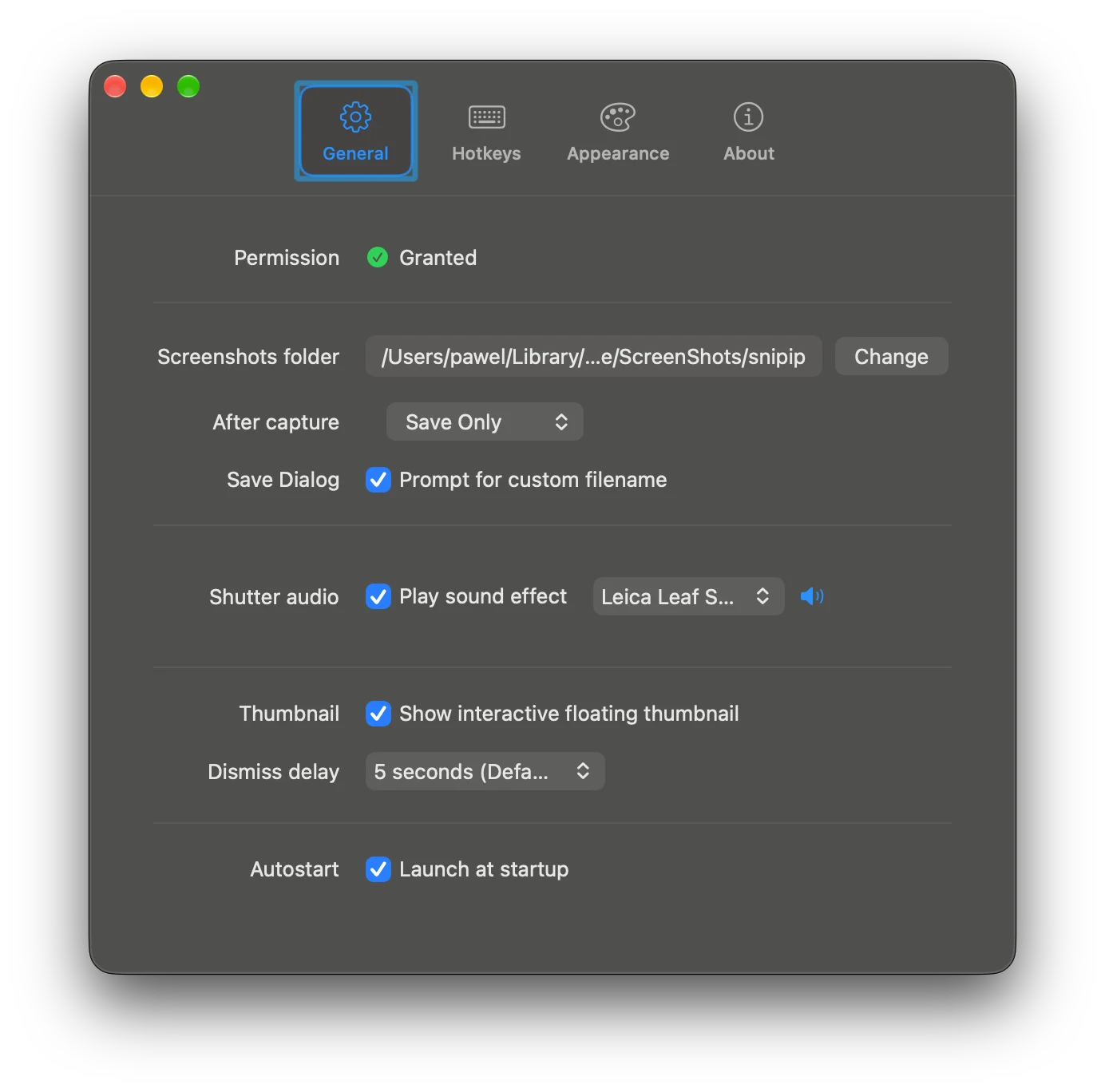
For Snipip, open Settings → General and check Screenshots folder and After capture. A capture may be set to save rather than open an editor. Check the destination before assuming a screenshot is missing.
Rename useful captures by purpose: billing-01-open-settings.png is easier to find than a timestamp when writing a guide. Keep the unedited capture alongside its final version if you expect revisions.
Take the same capture in Snipip
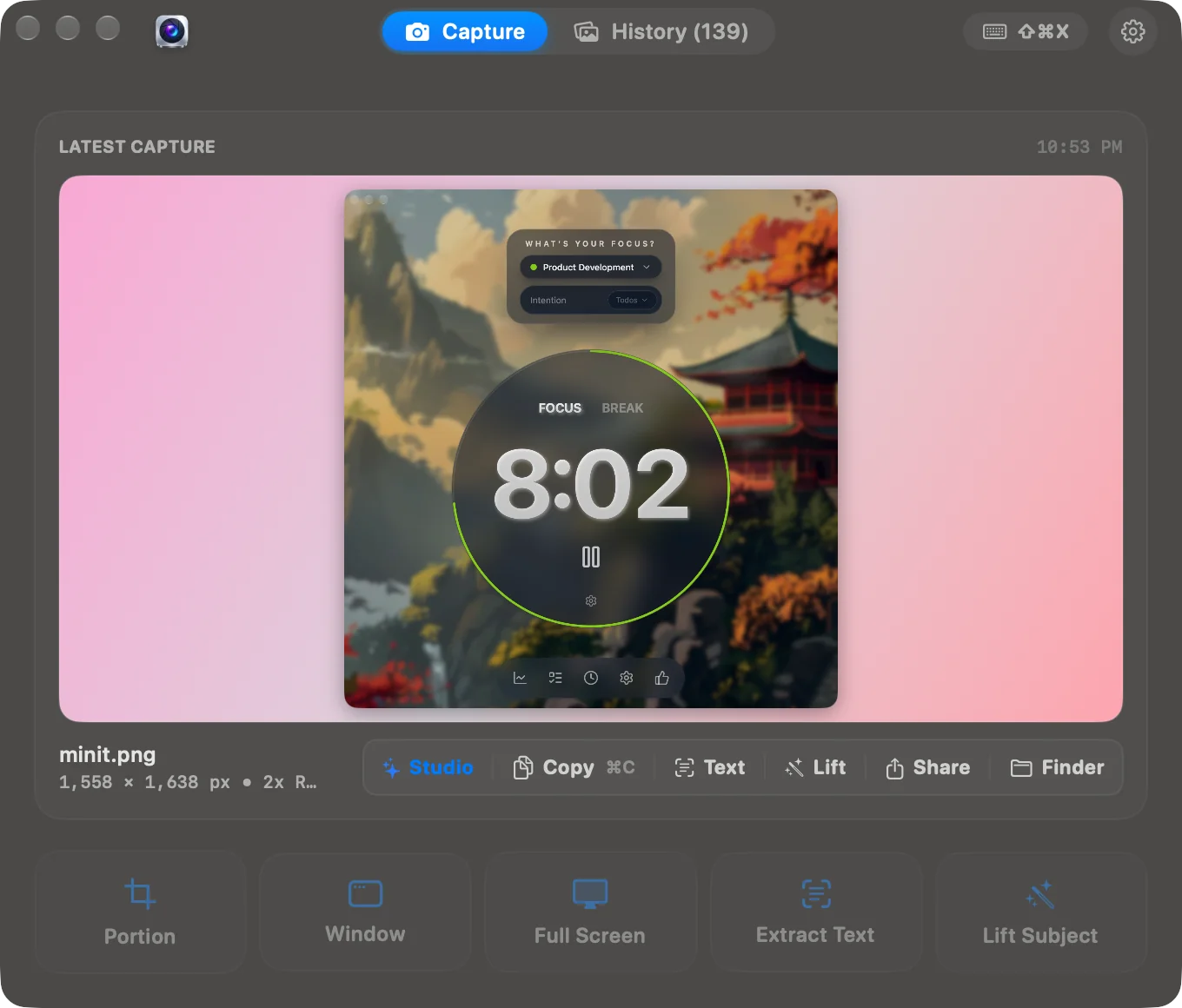
Open Snipip and choose Portion, Window, or Full Screen. The capture interface gives you access to the latest capture, copying, and the Studio. Check Settings → Hotkeys for the shortcuts assigned in your installation; the product’s shown region shortcut is Command + Shift + X.
Use a plain capture for troubleshooting. Open Studio when the screenshot needs a background or frame for a slide, article, or launch post. Our screenshot presentation guide explains how to keep that styling from shrinking the useful content.
Check the result before sharing
Open the file or paste it into a draft and inspect it at the size your reader will see. Can they read the label you are referring to? Does the image include the relevant error or selected setting? Are unrelated messages or account details visible?
If the text is too small, capture a tighter area or enlarge the source interface and retake it. Enlarging an already blurry image will not restore missing detail.
For arrows and labels, continue with how to annotate screenshots on Mac. If a shortcut does nothing, use the symptom table in Mac screenshot troubleshooting.
From the team behind Snipip
We build a Mac screenshot capture and presentation app. These guides cover practical workflows with Snipip, built-in macOS tools, and other screenshot apps. For a correction or a question about this guide, contact support@snipip.com.
Keep learning
View all →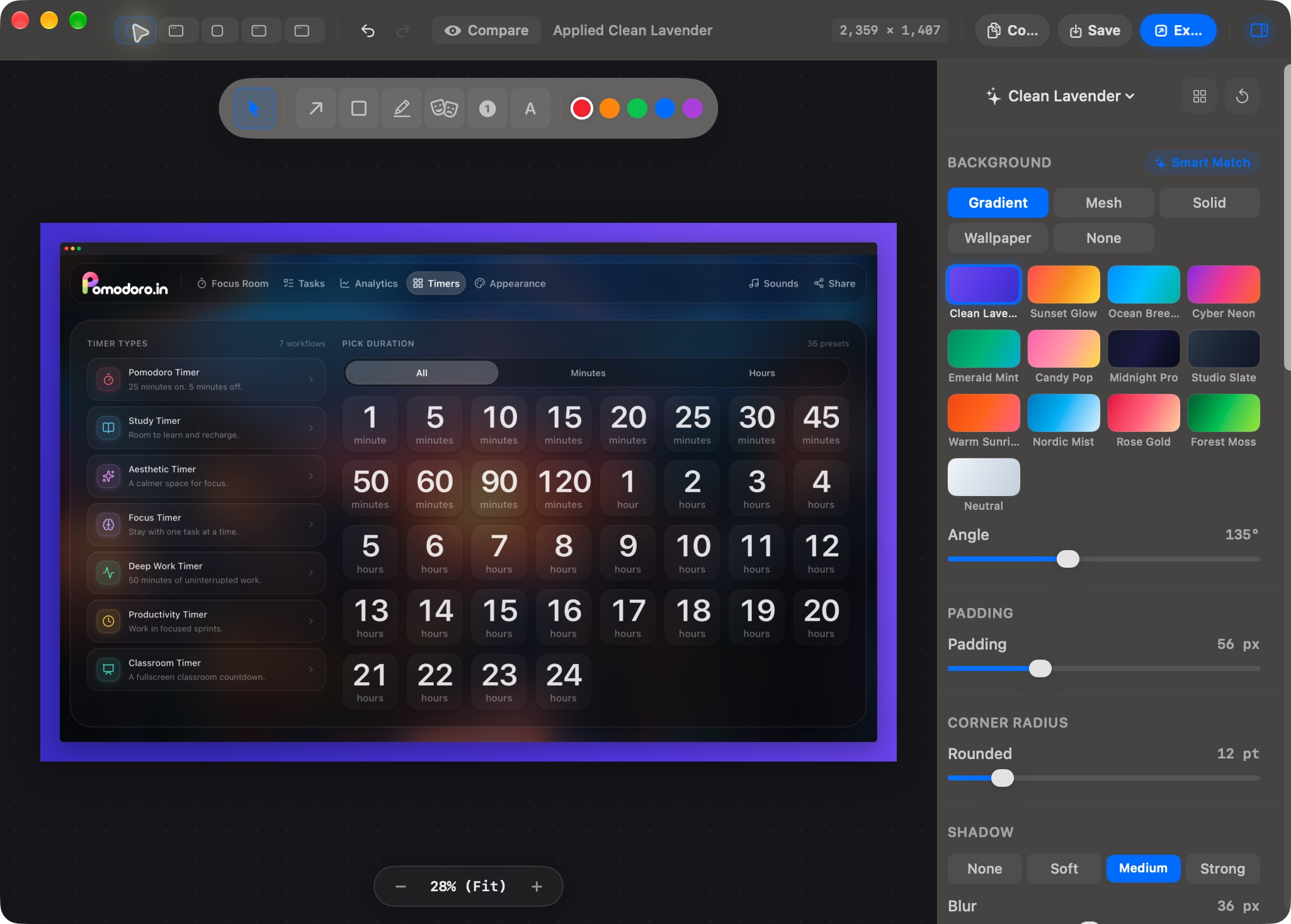
How to Annotate Screenshots on Mac: Arrows, Text, and Clear Steps
Use Preview to crop screenshots and add arrows, labels, and shapes. Learn a clear bug-report workflow and check edited images before sharing.
Mac Screenshot Not Working? Fix Shortcuts, Missing Files, and Blank Captures
Troubleshoot Mac screenshots by symptom: shortcuts that do nothing, captures that do not save, third-party permissions, and blank app windows.