Mac Screenshot Not Working? Fix Shortcuts, Missing Files, and Blank Captures
Troubleshoot Mac screenshots by symptom: shortcuts that do nothing, captures that do not save, third-party permissions, and blank app windows.
Snipip Team
Screenshot tools & workflows
Table of Contents (7 sections)
First separate a capture failure from a saving problem. Open Apple’s Screenshot app through Spotlight and try capturing a small area of an ordinary window. If that succeeds, investigate the shortcut or third-party app. If you see a capture preview but no file, investigate the save destination.
Use a harmless test window with sample content. Keep the same test while changing one setting at a time so you can tell which change helped.
Start with the symptom
| What happens | Check first | A useful next test |
|---|---|---|
| A shortcut does nothing | Keyboard shortcut assignment and conflicts | Open Screenshot from Spotlight |
| A capture happens but no file appears | Save destination or clipboard-only capture | Select a known local folder and capture again |
| Apple’s tool works but another app fails | That app’s capture permission and settings | Reopen the app after granting requested access |
| One window is blank | Whether capture is restricted for that content | Capture an ordinary app window |
| Scrolling capture stops or repeats sections | The page, scroll container, and capture method | Try a short static page or a browser-native capture |
A screenshot shortcut does nothing
Open System Settings → Keyboard → Keyboard Shortcuts → Screenshots. Confirm the shortcut is enabled and check its actual key assignment. The default screenshot combinations are documented in Apple’s screenshot controls.
If opening Screenshot directly works, temporarily quit other capture utilities and try the shortcut again. A third-party app may be using the same combination. Choose a distinct shortcut in that app’s settings rather than assigning several apps to the same keys.
For Snipip, check Settings → Hotkeys. Its shortcuts are separate from Apple’s screenshot settings. A key combination shown in a tutorial may have been customized on your Mac.
A screenshot is missing or does not save
Open the built-in capture controls and inspect Options → Save to. Select a known local folder for the next test. If you used a Control-modified capture shortcut or selected the clipboard as the destination, try pasting into an app that accepts images.
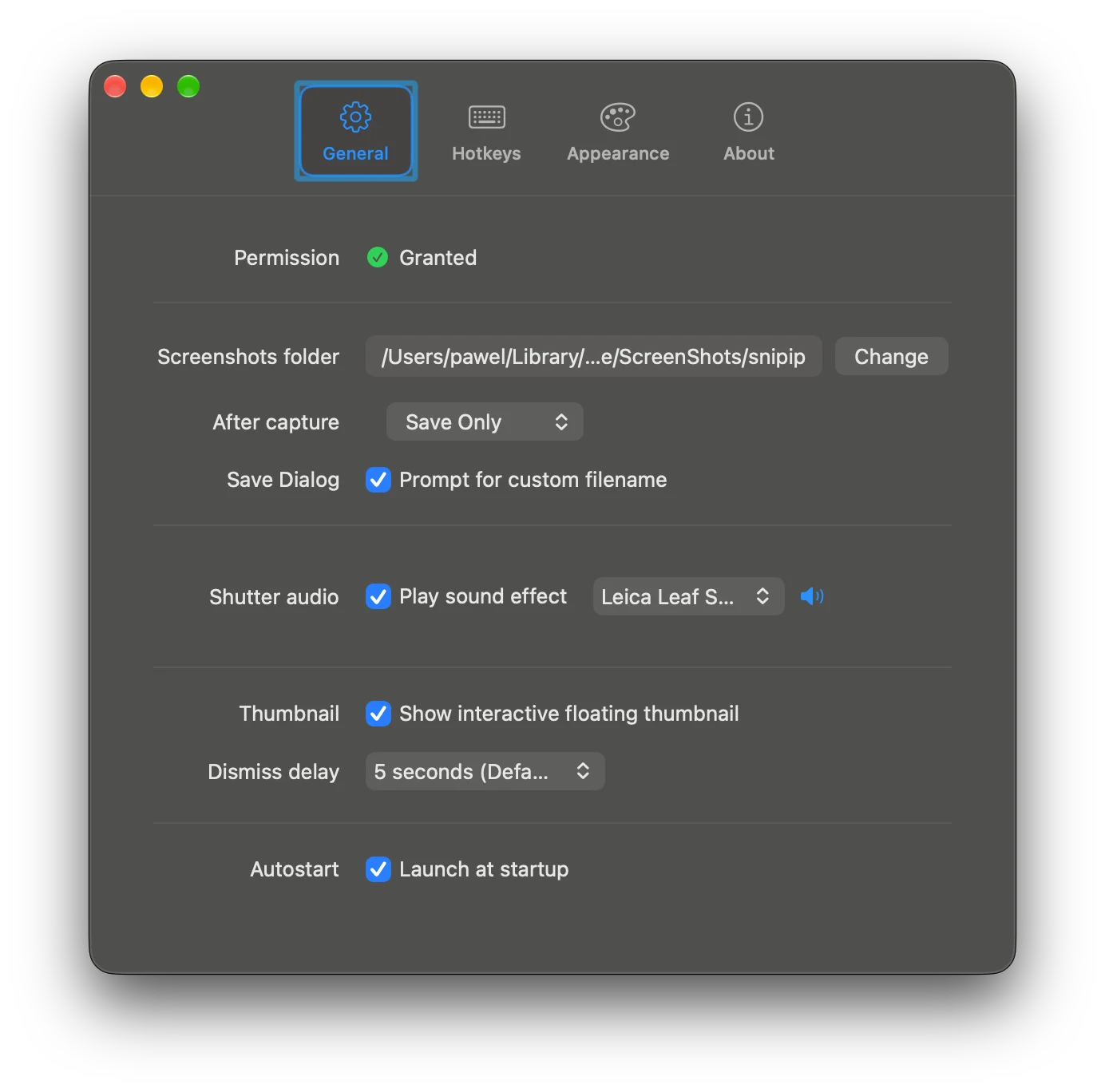
For a third-party app, inspect its own save preferences. In Snipip, Settings → General shows Screenshots folder and After capture. Save Only means you should look for a saved image rather than expecting the editor to open.
If a local test works but a network or synced folder does not, check that destination’s availability and whether you can save a normal file there. Search the folder you actually selected before changing more settings.
A third-party screenshot app cannot capture
Check System Settings → Privacy & Security → Screen & System Audio Recording, or Screen Recording on versions that use that label. Enable screen access for the app you are trying to use. If macOS asks you to quit and reopen it, do so, then repeat the same test.
Apple explains the permission controls in Control access to screen and system audio recording.
Grant the access required for the feature you are using. Some tools also request Accessibility for actions such as automated scrolling; follow that tool’s documented setup. If settings are managed by your organization, ask the administrator when the relevant control is unavailable.
One app or video appears blank
Try a different, ordinary window using the same capture tool. If it works, the problem may be specific to the source content. Apple notes that some apps restrict screenshots of their windows.
Use the source app’s supported export or sharing feature when one exists. Reinstalling a screenshot tool will not make restricted content capturable.
A scrolling screenshot is incomplete
Wait for images and expanding sections to load before capturing. If the page loads more content indefinitely, decide where the capture should stop. A nested message panel may need a different method from the surrounding webpage.
Inspect the output for repeated headers, missing rows, and blank sections. For browser-native options and desktop scrolling tools, follow how to take a scrolling screenshot on Mac.
If the problem continues, send a precise report
Record the app and macOS versions, the exact shortcut or menu action, the selected destination, any permission prompt, and whether Apple’s Screenshot app works with the same window. Include the simplest sequence that reproduces the problem.
That gives support a useful starting point without requiring speculative system changes. For Snipip, contact support@snipip.com with those details and a non-sensitive example if available.
From the team behind Snipip
We build a Mac screenshot capture and presentation app. These guides cover practical workflows with Snipip, built-in macOS tools, and other screenshot apps. For a correction or a question about this guide, contact support@snipip.com.
Keep learning
View all →
How to Take a Screenshot on Mac: Shortcuts, Windows, and Saving
Capture a region, window, or full screen on Mac. Learn the shortcuts, copy without saving, set a timer, and choose where screenshots go.
How to Take a Scrolling Screenshot on Mac: Webpages and App Windows
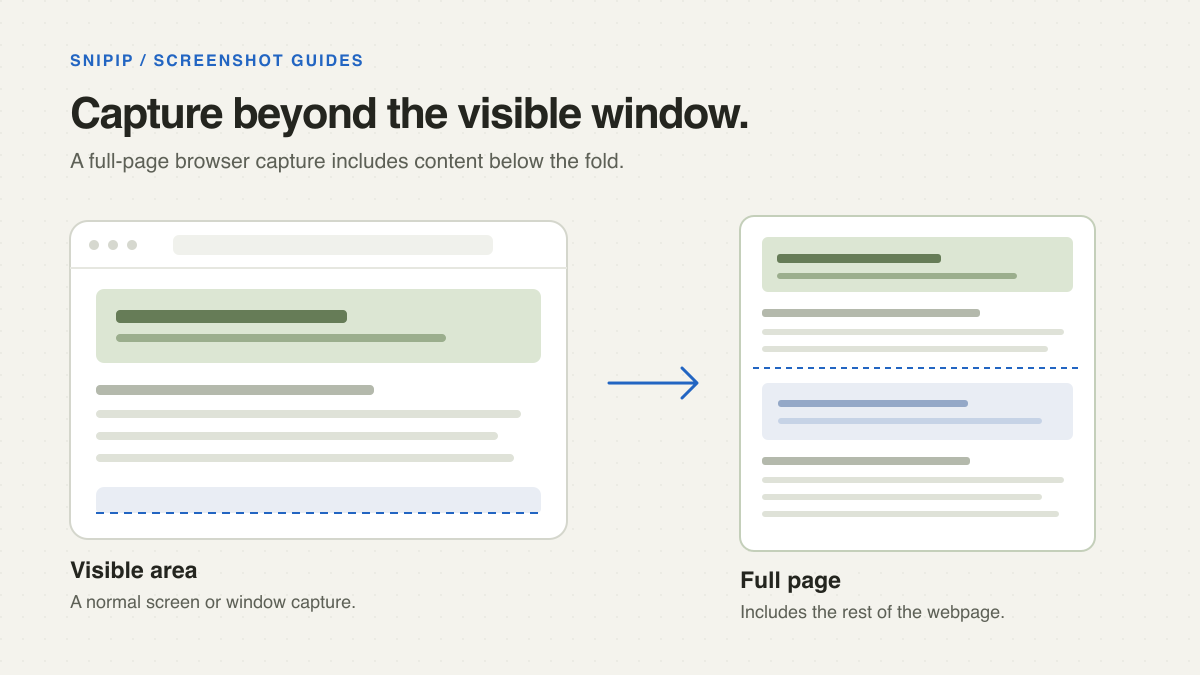
Capture a full webpage with Chrome or Firefox, or use a scrolling capture app for long windows. Fix missing content and choose a readable output.