Best Screenshot Tools for Mac: Choose by the Work You Do
Compare the built-in Mac screenshot tool, CleanShot X, Shottr, Xnapper, and Snipip for capture, annotation, scrolling pages, and polished visuals.
Snipip Team
Screenshot tools & workflows
Table of Contents (7 sections)
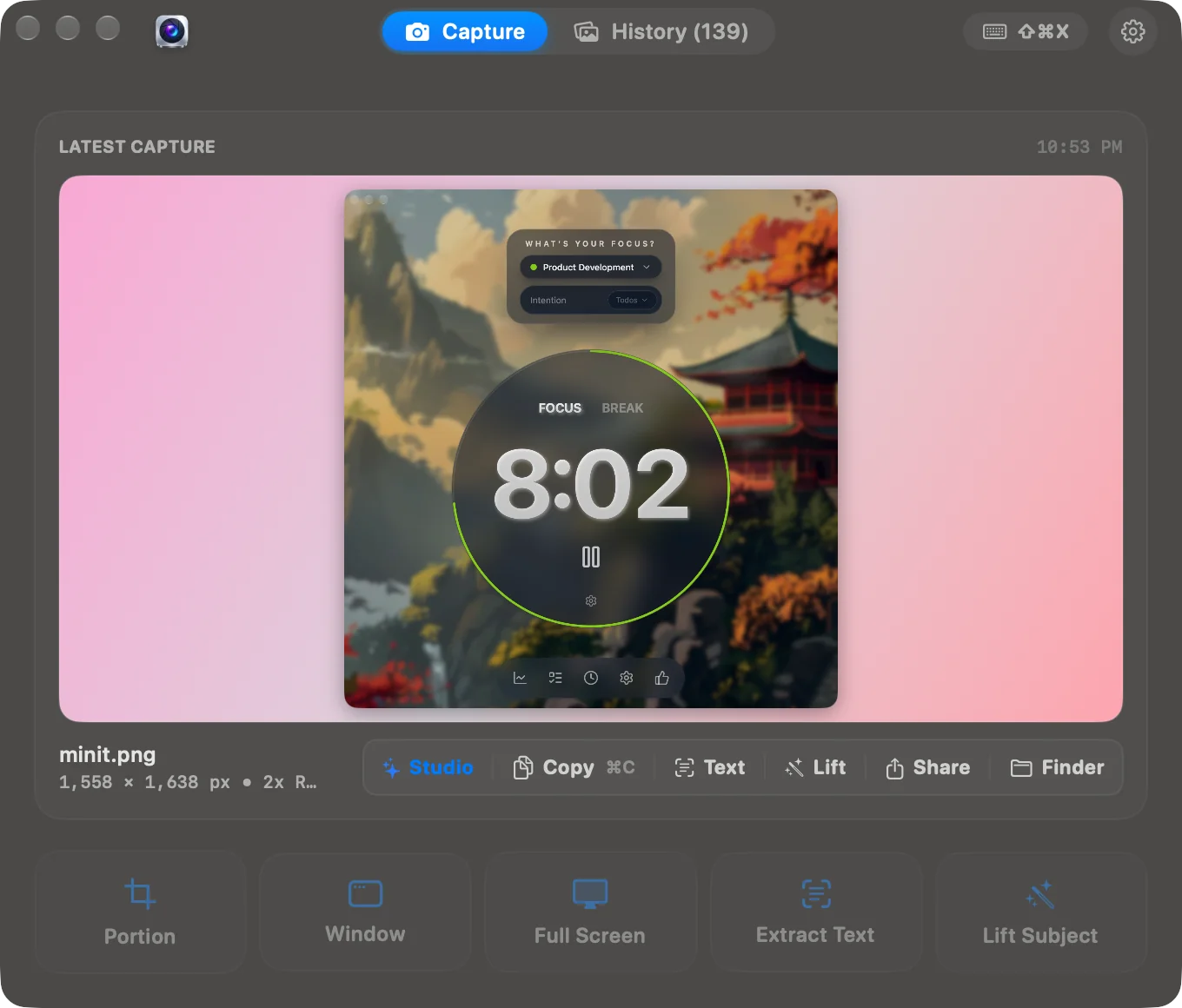
Start with the built-in Mac screenshot tool for occasional captures. Consider a dedicated app when you repeatedly need annotations, scrolling captures, text extraction, or presentation styling. The best choice depends on what happens after you press the shortcut.
This guide is published by the team behind Snipip. The comparison uses the linked product documentation, checked on October 25, 2026; it is not a hands-on performance benchmark. We have left out RAM rankings, speed claims, and exact prices that require a repeatable test or a current checkout quote.
A quick comparison by task
| Tool | Start here when you need | What to check before choosing |
|---|---|---|
| macOS Screenshot + Preview | Occasional captures and basic markup | Whether the built-in editing workflow covers your recurring tasks |
| CleanShot X | Capture, annotation, scrolling content, and recordings in one app | Which cloud and collaboration features your plan includes |
| Shottr | Screenshot markup, OCR, scrolling capture, and pixel inspection | Whether scrolling works in the specific app you use |
| Xnapper | Automatically balanced screenshots with styled backgrounds | Whether its layout and export controls suit your publishing workflow |
| Snipip | Region/window capture followed by backgrounds and frames in Studio | Whether its presentation workflow fits your images; use another tool for scrolling capture or recording |
macOS Screenshot and Preview: begin with what you have
The built-in capture shortcuts handle an area, a window, or a full screen. Preview adds editing without another installation. This is a sensible starting point for a support attachment or an occasional instructional image. See Apple’s capture instructions and Preview’s markup tools.
The decision is whether switching between capture, a file, and Preview becomes repetitive. Try your normal task first. If you can finish it comfortably, you may not need another app.
CleanShot X: a broad capture and sharing workflow
CleanShot X documents screenshot annotation, scrolling capture, backgrounds, text recognition, screen recording, and cloud sharing. It is a candidate when your work alternates between still images and short demonstrations.
Evaluate the whole path: capture something, annotate it, export a local file, then test any sharing features you intend to use. Check cloud access and plan terms separately from the desktop capture features. A local attachment and a hosted link solve different collaboration problems.
Shottr: detailed screenshot work
Shottr documents markup, OCR, scrolling screenshots, image overlays, and measurement tools. These are useful capabilities to evaluate for visual feedback and interface inspection.
Try a representative screenshot containing small text and a layout issue. Can you mark the problem clearly, inspect the relevant detail, and save a usable result? If scrolling is essential, test an actual page or conversation from your work. General feature support does not guarantee every scrollable interface behaves the same way.
Xnapper: automatic presentation styling
Xnapper emphasizes automatic balancing, background colors, gradients, presets, text recognition, and sensitive-information hiding. It is worth evaluating when you frequently turn small interface captures into images for articles or social posts.
Use the same source image at two output shapes. Check whether the important text remains readable and whether you can adjust the composition without starting over. Review anything automatically hidden before publishing; your own content may include sensitive details a detector does not recognize.
Snipip: capture through presentation in one place
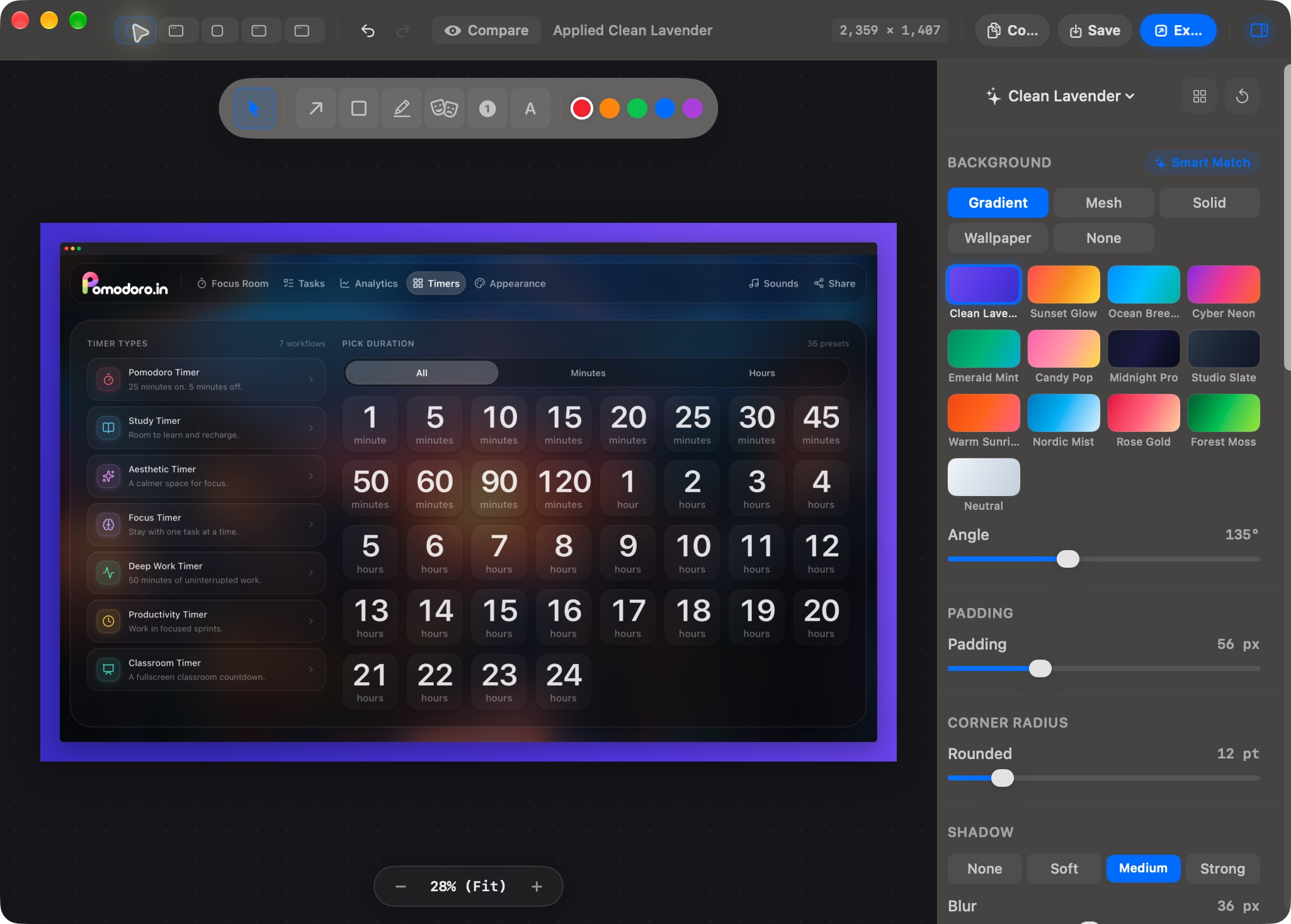
Snipip combines region, window, and full-screen capture with a Presentation Studio for backgrounds, frames, corners, and shadows. Its settings also expose screenshot destinations, after-capture behavior, and hotkeys.
It is a fit to evaluate when the finished image needs to look consistent across a release announcement, documentation page, or slide deck. Start with our practical Studio workflow and your own screenshot.
This guide does not claim Snipip supports scrolling capture, video recording, or automatic redaction. If those are requirements, evaluate tools that explicitly document them.
Run a ten-minute trial with your own work
Instead of comparing feature counts, repeat these tasks in each candidate:
- Capture one real problem. Use an interface you explain regularly, with non-sensitive sample data.
- Make it understandable. Crop it, add a useful label if needed, and save the result.
- Fit the destination. Put the image in the actual document, ticket, or slide. Inspect it at normal viewing size.
- Repeat the workflow. Take a second related image and see whether matching the first is straightforward.
- Check the terms. Review the current license, update period, export restrictions, and any cloud requirements on the vendor’s site.
Choose the app that removes the repetitive step you actually encounter. For a one-off capture, start with Mac’s screenshot shortcuts. For a long webpage, follow the scrolling screenshot guide before buying a tool solely for that task.
From the team behind Snipip
We build a Mac screenshot capture and presentation app. These guides cover practical workflows with Snipip, built-in macOS tools, and other screenshot apps. For a correction or a question about this guide, contact support@snipip.com.
Keep learning
View all →How to Take a Screenshot on Mac: Shortcuts, Windows, and Saving
Capture a region, window, or full screen on Mac. Learn the shortcuts, copy without saving, set a timer, and choose where screenshots go.
How to Make Beautiful Screenshots for Docs, Slides, and Launches
Turn a raw screenshot into a clear, polished visual with better cropping, backgrounds, padding, frames, and export sizing in Snipip Studio.